
Guides
How to Order on Society Kart: Step by Step, from Shop to Doorstep
A complete walkthrough of ordering on Society Kart — installing the app, signing in, choosing a shop, checking out, paying, tracking your order and confirming delivery with your code.
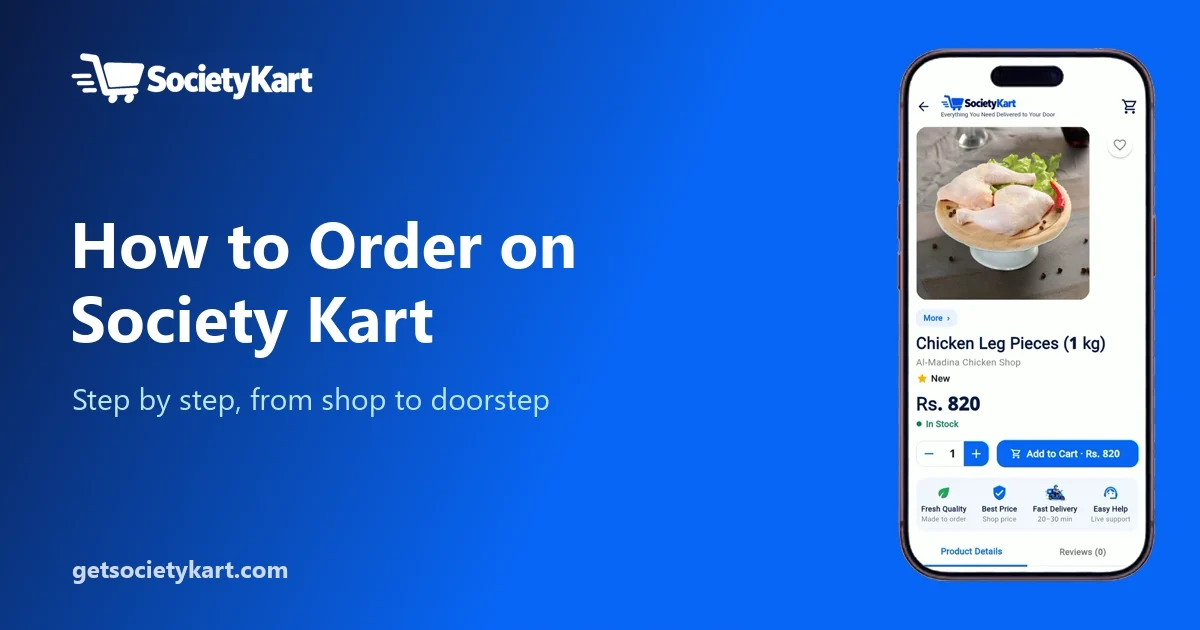
New to Society Kart? This guide takes you through a complete order, from installing the app to receiving your groceries at the door. It takes a few minutes the first time and a few taps after that.
Step 1: Install the app
Society Kart is available for Android. Download it from the Society Kart website — the "Download for Android" button gives you the latest version. When your phone asks, allow installs from this source. Store listings on Google Play and the App Store are coming soon.
Step 2: Browse — no account needed
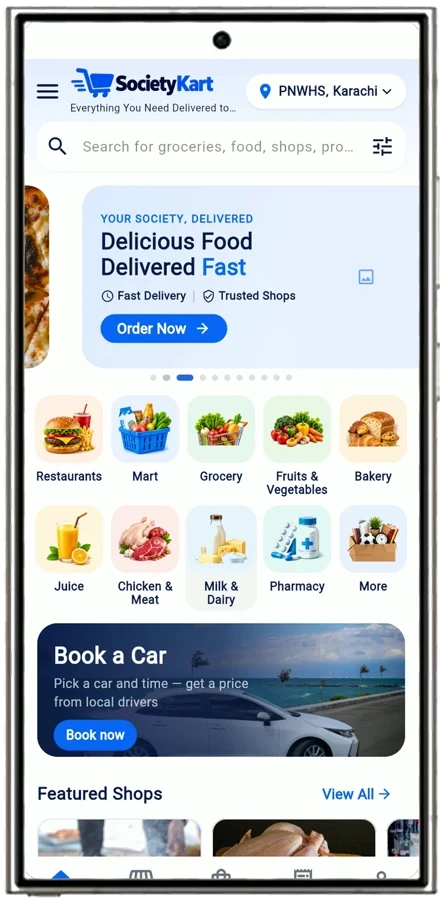
You can open the app and browse as a guest. Pick your society at the top of the home screen and explore:
- Categories — restaurants, mart, grocery, fruits and vegetables, bakery, juice, chicken and meat, milk and dairy, pharmacy and more
- Featured shops — with live "Open now" or "Closed" status
- Search — find a shop or product by name
Step 3: Sign in
When you are ready to order, sign in with email (a one-time code), Google or Facebook. You can also turn on fingerprint or Face ID so the app unlocks quickly and stays secure.
Society Kart will never ask you for your password, OTP or wallet PIN in chat. Never share them with anyone.
Step 4: Add your address
Save your delivery address with sector, street and house number. A map pin is optional but helps riders find you faster. You can save several addresses — home, a parent's house, the office — and choose one at checkout.
Step 5: Choose a shop and add items
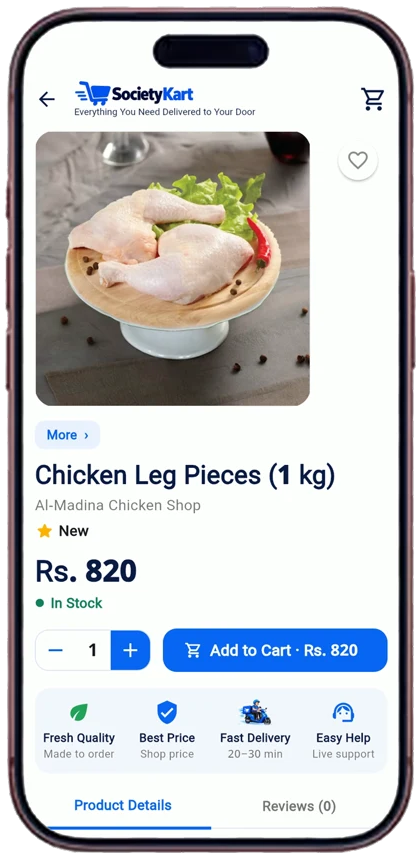
Open a shop to see its menu or products, organised in sections (for example Breakfast, Lunch, Roti, Drinks for a restaurant). Each product shows its price, unit and stock. Tap Add to Cart.
A few things to know:
- Each shop is a separate order. If you add items from two shops, you will have two carts.
- Minimum order: Rs. 500 of items per shop.
- Closed shops cannot take orders until they open again.
Step 6: Check out
The cart shows a clear summary:
- Items total
- Delivery fee (Rs. 100)
- Any promo or first-order discount
- Total amount
The delivery fee is not counted towards the Rs. 500 minimum. Add delivery instructions if needed — for example "ring the bell twice" or "leave with the guard".
Step 7: Choose how to pay
- Cash on Delivery — pay the rider in cash.
- JazzCash or Easypaisa — send the total to the rider's wallet number shown in the order and upload the payment screenshot. The app can read the transaction ID from the screenshot, and the rider confirms receipt.
Learn more in Cash, JazzCash or Easypaisa?.
Step 8: Track your order
After you place the order, you can follow it live:
1. Placed — the shop has your order. 2. Accepted — the shop has confirmed it. 3. Preparing — your items or food are being prepared. 4. On the way — a rider has picked it up. 5. Delivered — confirmed with your code.
Notifications tell you when each step happens. Need to change your mind? You can cancel within 60 seconds from the order page.
Step 9: Talk to the shop or rider (privately)
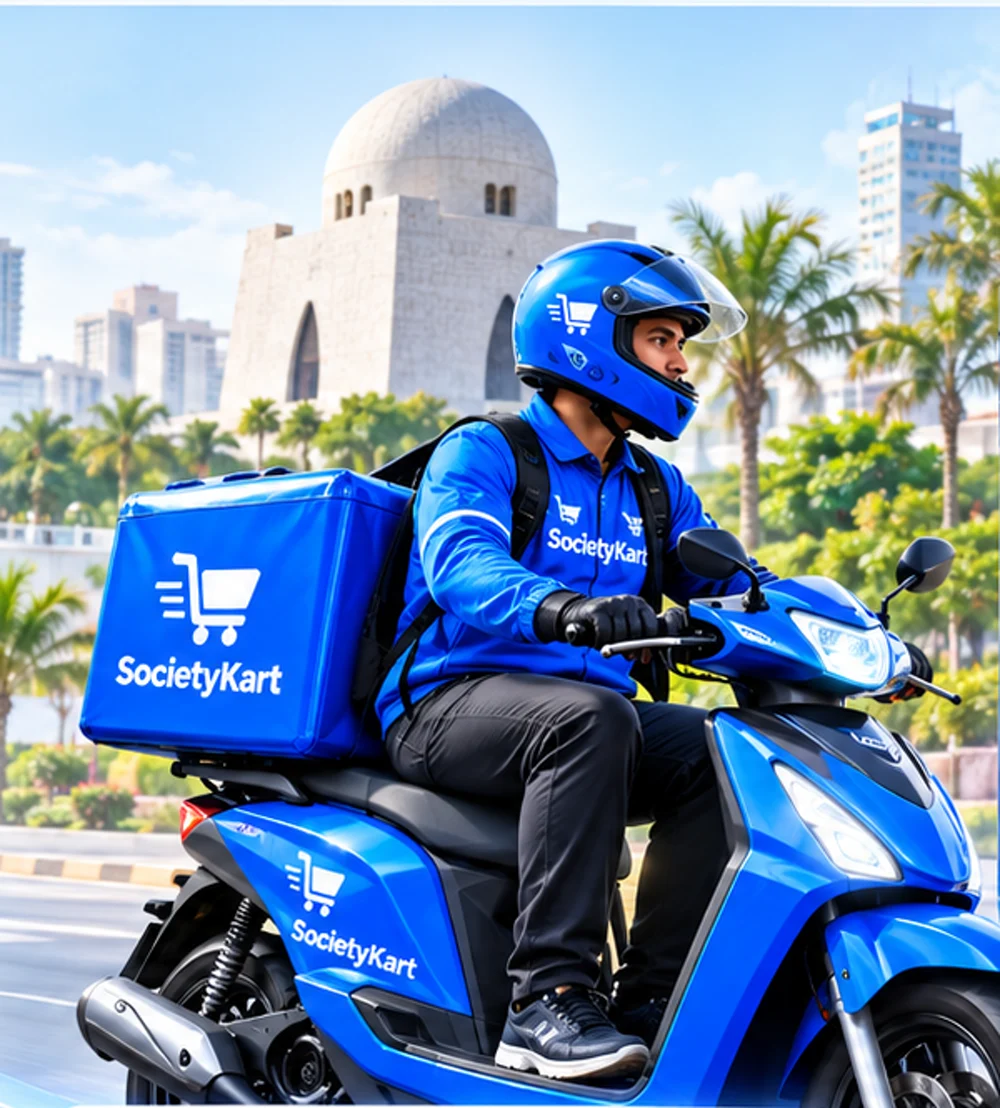
If you need to say something — "please add extra chutney" or "I'm at the gate" — use the in-app chat or a free in-app call. Your phone number is never shared with the shop or rider, and theirs are not shared with you. Read Your Number Stays Private.
Step 10: Confirm delivery with your code
Every order has a private 4-digit delivery code in the app. When the rider arrives and you have checked your order, share the code with the rider. The rider enters it in the app to complete the delivery. Never share the code before you have the order, and never in chat.
Step 11: Rate and get help if needed
After delivery you can leave a review for the shop. If anything is wrong — a missing item, damaged packaging, a wrong product — open the order and use Help & Support. The AI Assistant answers first and can pass you to a person from the team. The Refund and Cancellation Policy explains how cases are handled.
Quick troubleshooting
- "Minimum order not reached" — add items from the same shop to reach Rs. 500.
- Shop shows Closed — check its opening hours or choose another shop.
- Rider can't find you — check your saved address and add a map pin.
- Payment screenshot not accepted — make sure the full transaction ID and amount are visible.
Frequently asked questions
Do I need an account to browse?
No. You only need to sign in when you place an order.
Can I order for someone else?
Yes — add their address and make sure they have the delivery code to give the rider.
Can I schedule an order for later?
Orders are placed for now. For planned car trips, use Car Booking.
Which languages does the app support?
English, Urdu, Roman Urdu and Arabic.
Order from shops in your society with Society Kart.
Explore Society KartRelated
Grocery Delivery in PNWHS Bin Qasim: A Practical Guide for Residents
Everything residents of PNWHS, Bin Qasim need to know about ordering groceries, milk, bread, meat, fruit and medicine from the shops in their own society — what to expect, what it costs and how to get the best out of it.
Read article
Cash, JazzCash or Easypaisa? Paying Safely for Local Deliveries
Society Kart supports Cash on Delivery and JazzCash or Easypaisa sent to the rider's wallet. Here is how each works, what the rider checks, and simple habits that keep your money safe.
Read article